How to Set Up Event Tracking in GA4 — Step by Step
You’ve got GA4 installed, data is flowing in — but you’re only seeing page views. The real power of Google Analytics 4 is event tracking: capturing every button click, form submission, video play, and scroll that matters to your business. This guide walks you through setting it up from scratch.
I’ve set up event tracking for dozens of sites — from small blogs to enterprise e-commerce stores. The process always follows the same pattern: understand what GA4 tracks automatically, decide what else you need, then configure it. Let’s go through each step.
Contents
- 1 What Is Event Tracking in GA4?
- 2 Prerequisites — What You Need Before Starting
- 3 Step 1 — Decide What to Track
- 4 Step 2 — Enable Enhanced Measurement
- 5 Step 3 — Create Custom Events in the GA4 Interface
- 6 Step 4 — Set Up Custom Events with Google Tag Manager
- 7 Step 5 — Register Custom Dimensions and Metrics
- 8 Step 6 — Test Your Events with DebugView
- 9 Step 7 — Mark Key Events (Conversions)
- 10 GA4 Event Naming Rules
- 11 Common Event Tracking Mistakes to Avoid
- 12 FAQ
- 13 What’s Next
What Is Event Tracking in GA4?
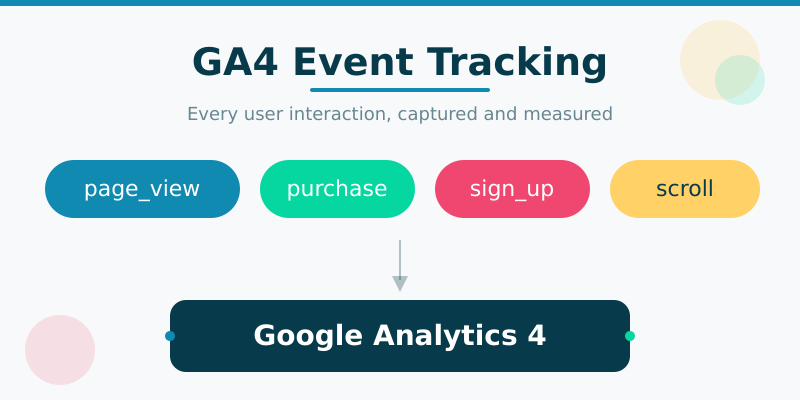
GA4 uses an event-based data model. Unlike Universal Analytics (which tracked sessions and pageviews), GA4 treats every user interaction as an event. A page view is an event. A scroll is an event. A purchase is an event.
Each event has a name (like page_view or purchase) and optional event parameters — extra details about what happened. For example, a purchase event includes parameters like transaction_id, value, and currency.
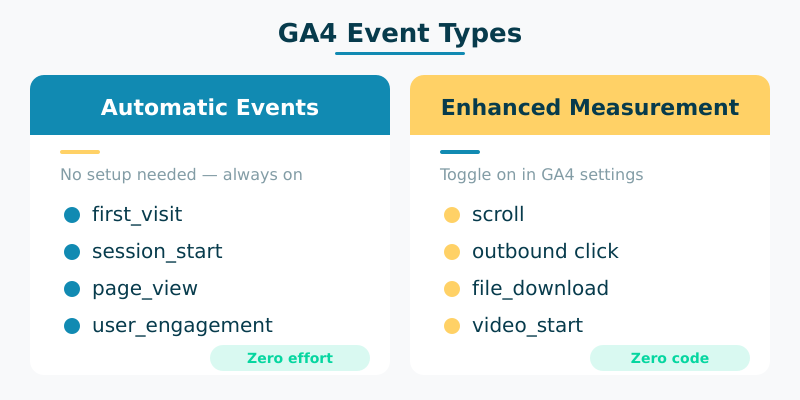
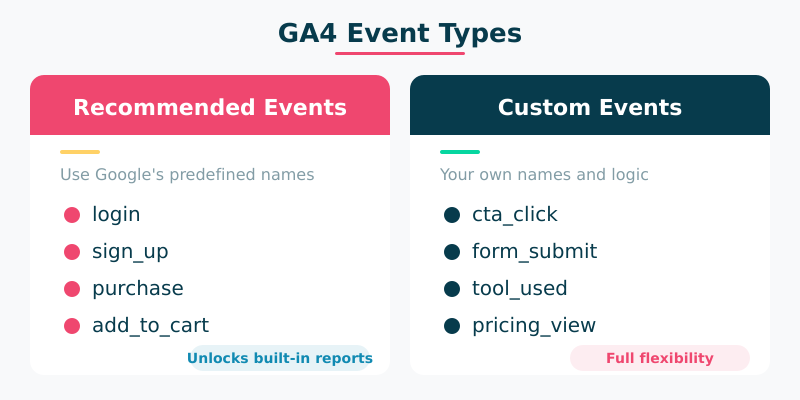
GA4 organizes events into four types:
| Event Type | Setup Required | Examples |
|---|---|---|
| Automatically collected | None — always active | first_visit, session_start, page_view |
| Enhanced measurement | Toggle on/off in GA4 | scroll, click, file_download, video_start |
| Recommended | Manual implementation | login, sign_up, purchase, add_to_cart |
| Custom | Manual implementation | Any event specific to your business |
The key decision is figuring out which type you need. More on that in Step 1.
Prerequisites — What You Need Before Starting
Before setting up event tracking, make sure you have:
- A GA4 property with data already flowing (you should see page views in Realtime reports)
- Google Tag Manager installed on your site (recommended for Steps 4+). If you haven’t set it up yet, Google’s GTM installation guide takes about 10 minutes
- Edit access to your GA4 property (Admin → Property Access Management)
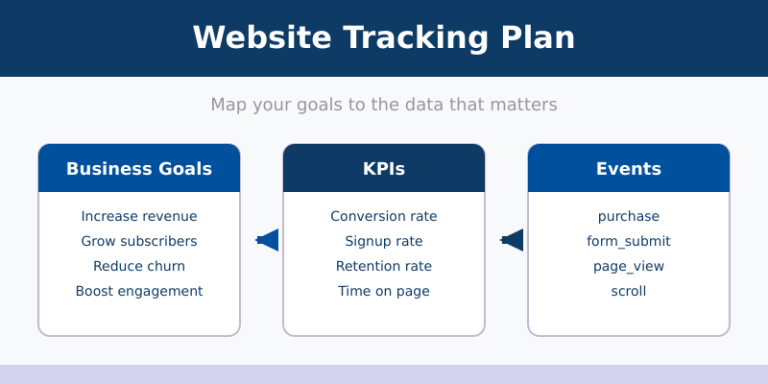
- A tracking plan — even a simple list of what user actions matter to your business
Don’t track everything just because you can. Start with 5-10 events that directly tie to your business goals. You can always add more later.
Step 1 — Decide What to Track
This is where most guides skip straight to the technical setup. Don’t. Spending 15 minutes on planning saves hours of cleanup later.
Use this decision framework to determine which event type you need for each interaction:
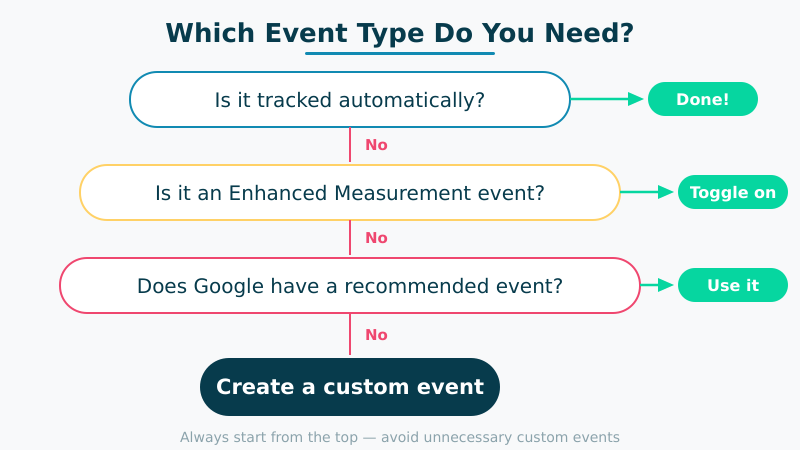
- Is it already tracked automatically? Check Google’s list of automatically collected events. If yes, you’re done — no setup needed.
- Is it covered by Enhanced Measurement? Scrolls, outbound clicks, site search, video engagement, and file downloads are all built in. Just toggle them on (Step 2).
- Does Google have a recommended event for it? Check the recommended events list. Use the exact event names and parameters Google suggests — it unlocks built-in reports.
- None of the above? Create a custom event (Steps 3 or 4).
Here’s what this looks like in practice for different business types:
| Business Type | Key Events to Track | Event Type |
|---|---|---|
| E-commerce | view_item, add_to_cart, purchase | Recommended |
| SaaS | sign_up, login, trial_start, feature_used | Recommended + Custom |
| Lead generation | generate_lead, form_submit, cta_click | Recommended + Custom |
| Content/Blog | scroll, click, newsletter_signup | Enhanced + Custom |
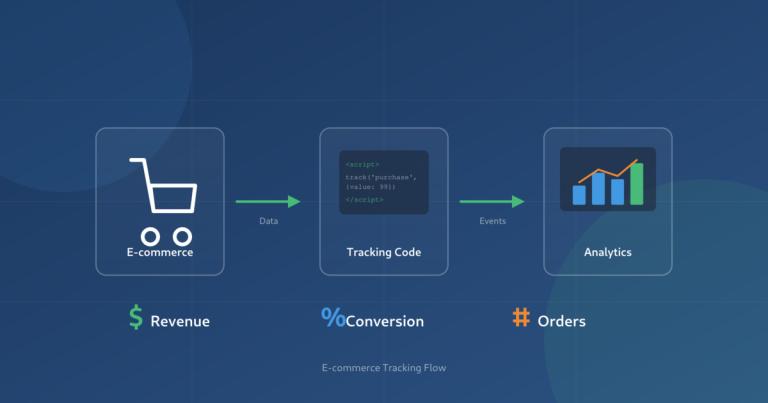
If you’re running an e-commerce site and need the full purchase funnel tracked, check out my guide on how to set up e-commerce tracking without a developer.
Step 2 — Enable Enhanced Measurement
Enhanced measurement gives you six additional event types with zero code. Here’s how to turn it on:
- Open your GA4 property
- Go to Admin → Data Streams
- Click your web data stream
- Find the Enhanced measurement toggle and make sure it’s on
- Click the gear icon next to it to customize which events are active
Here’s what each enhanced measurement event captures:
| Event | What It Tracks | Keep On? |
|---|---|---|
scroll | When users scroll past 90% of the page | Yes — basic engagement signal |
click (outbound) | Clicks to external domains | Yes — shows where users leave |
view_search_results | Site search queries | Yes, if you have site search |
video_start, video_progress, video_complete | YouTube embedded video engagement | Yes, if you embed videos |
file_download | PDF, XLSX, DOCX, and other file downloads | Yes — often overlooked |
form_start, form_submit | Form interactions | Maybe — can create duplicate data with custom events |
One important caveat: form_start and form_submit from enhanced measurement only work on standard HTML forms. If your site uses AJAX forms, single-page app forms, or third-party form builders, these events might not fire. You’ll need custom event tracking instead (Step 4).
Step 3 — Create Custom Events in the GA4 Interface
The GA4 interface lets you create events based on conditions — no code required. This works well for simple events that are based on existing event data.
When to use this method:
- You want to create a new event based on an existing event (e.g., track only page views of your pricing page)
- You don’t have access to GTM or your site’s code
- You need something quick and simple
How to do it:
- Go to Admin → Events
- Click Create event
- Click Create in the top right
- Name your event (use
snake_case— more on naming in the next section) - Set matching conditions
Example: Track when someone views your pricing page.
- Custom event name:
view_pricing_page - Condition 1:
event_nameequalspage_view - Condition 2:
page_locationcontains/pricing
This method has limitations: you can only create events based on existing event data and parameters. You can’t capture new data points (like which button a user clicked). For that, you need GTM.
Step 4 — Set Up Custom Events with Google Tag Manager
Google Tag Manager is the most flexible way to set up event tracking. It lets you track virtually any user interaction without editing your site’s code.
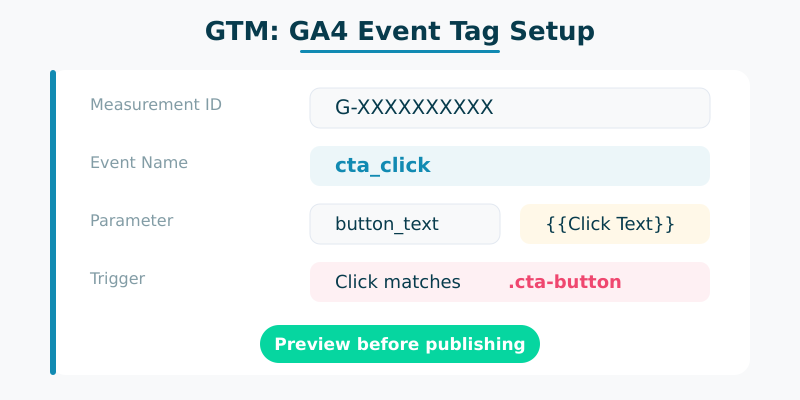
Here’s how to create a GA4 event tag in GTM:
- Open GTM and go to Tags → New
- Tag type: Select Google Analytics: GA4 Event
- Measurement ID: Enter your GA4 Measurement ID (starts with
G-). Better yet, use a Constant variable so you only enter it once - Event Name: Enter your event name in
snake_case(e.g.,cta_click) - Event Parameters: Add any parameters you want to capture (e.g.,
button_text,button_location) - Trigger: Create or select a trigger that fires when the interaction happens
- Save the tag
Example: Track CTA button clicks.
| Setting | Value |
|---|---|
| Tag type | GA4 Event |
| Event name | cta_click |
Parameter: button_text | {{Click Text}} |
Parameter: page_section | {{Page Path}} |
| Trigger | Click — CSS Selector matches .cta-button |
After creating the tag, use GTM’s Preview mode to test it before publishing. Click the Preview button, interact with your site, and verify the event fires in the debug panel.
Step 5 — Register Custom Dimensions and Metrics
This is the step almost everyone forgets. When you send custom event parameters to GA4, they don’t automatically appear in reports. You need to register them as custom dimensions or metrics.
- Go to Admin → Custom definitions
- Click Create custom dimension (or metric)
- Enter the dimension name (what users see in reports)
- Set scope to Event
- Enter the event parameter name (must match exactly what you’re sending)
- Save
Two things to know:
- Processing delay: Custom dimensions take 24-48 hours to populate with data. Don’t panic if you see nothing right away.
- Limits: Free GA4 properties allow 50 custom dimensions and 50 custom metrics. Plan your parameter strategy — don’t waste slots on data you’ll never report on.
Step 6 — Test Your Events with DebugView
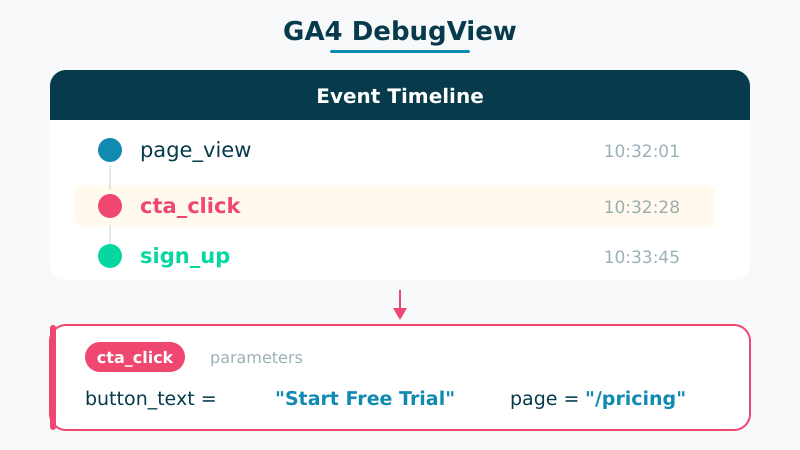
Before you trust your data, test it. GA4’s DebugView shows events in real time as they fire, with all their parameters.
How to enable debug mode:
- With GTM: Use GTM’s Preview mode — it automatically enables GA4 DebugView
- With the Chrome extension: Install Google Analytics Debugger and turn it on
- With gtag.js: Add
'debug_mode': trueto your config
Then open Admin → DebugView in GA4. You’ll see a timeline of events from your debug device. Click any event to inspect its parameters.
What to check:
- Event names appear exactly as expected (spelling, case)
- Parameters contain the right values
- Events fire once per interaction (no duplicates)
- No events fire on page load that shouldn’t
Step 7 — Mark Key Events (Conversions)
Once your events are tracking correctly, flag the important ones as Key Events (what GA4 used to call “conversions”).
- Go to Admin → Key events
- Click New key event
- Enter the event name exactly as it appears in your reports
- Save
Alternatively, find any event in Reports → Engagement → Events and toggle the “Mark as key event” switch.
Key events get special treatment in GA4: they appear in the conversions report, you can build audiences around them, and they sync directly with Google Ads for campaign optimization.
Not every event should be a Key Event. Limit yourself to 5-10 that represent real business value — form submissions, purchases, sign-ups, and qualified engagement. Too many Key Events dilute your data.
GA4 Event Naming Rules
Get your naming convention right from the start. Renaming events later means losing historical data continuity.
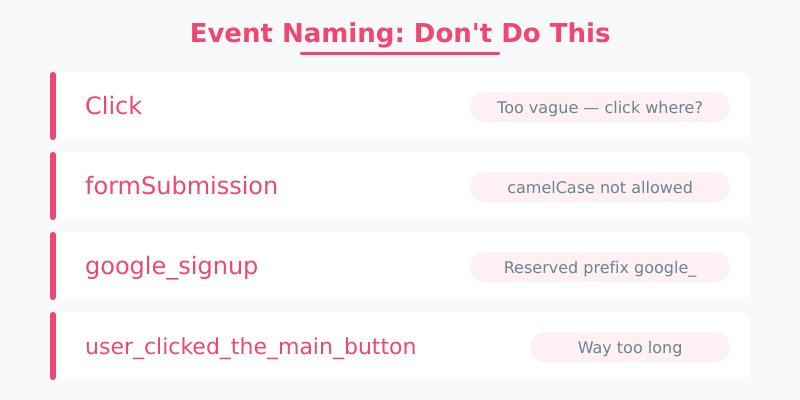
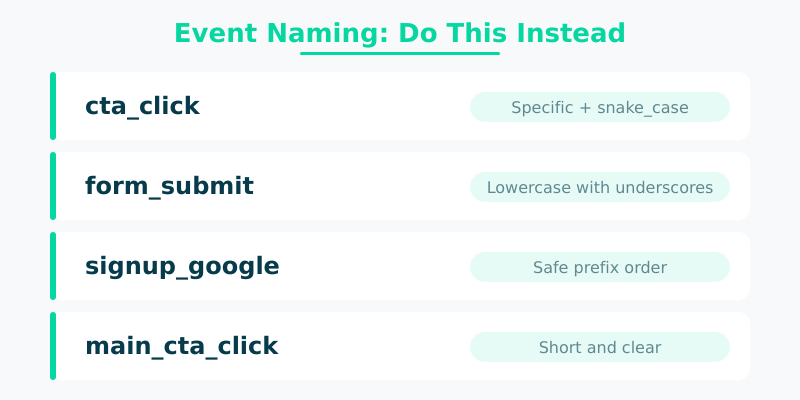
Rules:
- Use
snake_case(lowercase with underscores):form_submit, notFormSubmitorform-submit - Maximum 40 characters for event names
- Maximum 500 distinct event names per property
- Don’t use reserved prefixes:
firebase_,google_,ga_ - Be descriptive but concise:
newsletter_signupis better thannl_suoruser_completed_newsletter_subscription_form
| Bad | Good | Why |
|---|---|---|
Click | cta_click | Too generic — what was clicked? |
formSubmission | form_submit | Use snake_case, not camelCase |
google_signup | signup_google | Avoid google_ prefix |
user_clicked_the_main_cta_button | main_cta_click | Keep it short |
Common Event Tracking Mistakes to Avoid
I’ve audited GA4 setups where half the event data was unusable. Here are the most common problems:
1. Tracking everything without a plan. More events isn’t better. Every event you track should answer a specific business question. If you can’t explain why you’re tracking something, don’t.
2. Forgetting to register custom dimensions. You send button_text as a parameter, but never register it in Admin → Custom definitions. The data is collected but invisible in reports. Check Step 5.
3. Duplicate events. Enhanced measurement tracks form_submit, and you also set up a custom form_submit event in GTM. Now every form submission is counted twice. Disable the enhanced measurement version if you’re using a custom implementation.
4. Inconsistent naming. One developer uses signUp, another uses sign_up, a third uses signup. GA4 treats these as three separate events. Establish naming rules upfront and document them.
5. Ignoring Consent Mode. If your site uses a cookie consent banner (required by GDPR, and increasingly by US state laws), events may not fire for users who decline consent. Set up Consent Mode v2 so GA4 can model behavioral data from those sessions.
6. Not testing before publishing. A typo in an event name or a misconfigured trigger can go unnoticed for weeks. Always verify with DebugView (Step 6) before pushing to production.
FAQ
How many custom events can I track in GA4?
GA4 allows up to 500 distinct event names per property. There’s no limit on the number of times an event fires — only on unique event names. For most sites, 50-100 distinct events is more than enough.
Why are my GA4 events not showing up in reports?
Standard GA4 reports can take 24-48 hours to process data. Check the Realtime report first — if your event appears there, it’s working. If not, verify your tag fires correctly in GTM Preview mode or GA4 DebugView.
Do I need Google Tag Manager for GA4 event tracking?
No, but it’s strongly recommended. You can create events in the GA4 interface (Step 3) or add them directly with gtag.js code. GTM gives you more flexibility, easier management, and the ability to test before publishing.
What’s the difference between events and Key Events in GA4?
Every interaction tracked in GA4 is an event. Key Events are events you’ve flagged as important to your business — they’re GA4’s version of conversions. You can mark any event as a Key Event in Admin → Key events.
How does Consent Mode v2 affect event tracking?
When users decline cookie consent, GA4 events won’t fire normally. Consent Mode v2 sends cookieless pings instead, and GA4 uses behavioral modeling to estimate the data you’d be missing. Set it up if you operate in regions with privacy regulations.
What’s Next
You’ve got event tracking set up — now what? Your events are only valuable if they feed into reports and decisions. Start by reviewing your events in Reports → Engagement → Events to make sure the data looks right. Then build custom explorations to analyze user behavior patterns.
If you’re tracking e-commerce transactions, my guide on setting up e-commerce tracking without a developer covers the full purchase funnel setup. For debugging tricky tag issues, keep an eye out for our upcoming guide on debugging analytics tracking with GTM and GA4.
The most important thing: start simple. Track the 5-10 events that matter most to your business, get comfortable with the data, then expand from there.

About the Author
Tom Bradley
Marketing analyst with 8+ years in web analytics. I’ve completed 150+ GA4 implementations and helped 50+ brands turn data into growth strategies. Every guide on Viewing comes from real projects and real problems I’ve solved.