Let me be honest with you: setting up e-commerce tracking can be complicated. But depending on your platform, there are ways to do it without writing a single line of code. This guide will help you find the right path for your situation.
What gets measured gets managed.
— Peter Drucker, management consultant and author
The Truth About E-commerce Tracking
Before we dive in, let’s set realistic expectations. E-commerce tracking requires sending specific data (product views, add to cart, purchases) to your analytics platform. How easy this is depends entirely on your setup:
- Some platforms have built-in tracking that works automatically
- Others require plugins that handle everything for you
- Some situations genuinely need a developer — and that’s okay
The goal of this guide is to help you understand which category you fall into and give you the simplest path forward.
What Gets Tracked
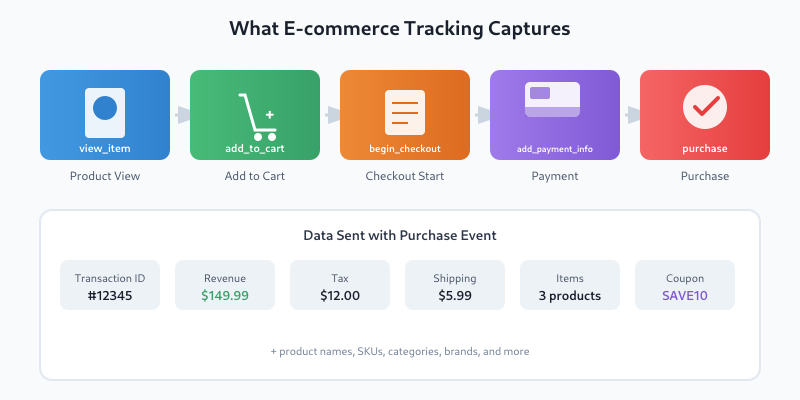
E-commerce tracking captures the entire customer journey — from browsing products to completing a purchase. According to Google’s official GA4 documentation, these are the recommended e-commerce events:
Quick Decision Guide
The difficulty of setting up e-commerce tracking depends almost entirely on which platform you’re using:
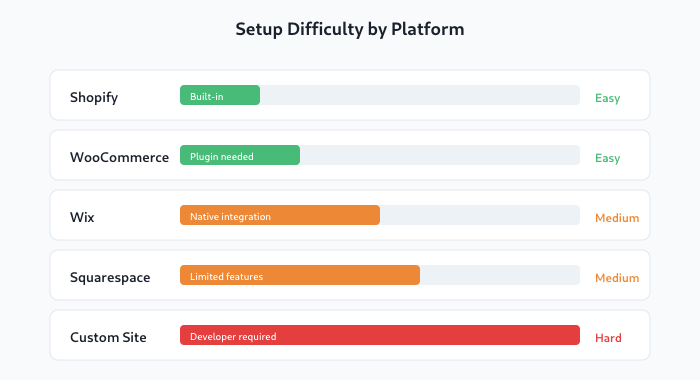
Here’s the quick reference:
| Platform | Difficulty | Best Approach |
|---|---|---|
| Shopify | Easy | Built-in tracking + app |
| WooCommerce | Easy | Plugin (GTM4WP or MonsterInsights) |
| Wix | Medium | Native integration |
| Squarespace | Medium | Built-in + manual setup |
| Custom site | Hard | Developer needed |
Option 1: Shopify (Easiest)
Good news: Shopify has the most straightforward e-commerce tracking setup. Most of it works automatically.
What Shopify Tracks Automatically
When you connect Google Analytics 4 to Shopify, these events are tracked without any extra setup:
- Page views
- Product views (view_item)
- Add to cart (add_to_cart)
- Begin checkout (begin_checkout)
- Purchases (purchase)
Setup Steps
Follow Shopify’s analytics page or these quick steps:
- Go to Shopify Admin → Online Store → Preferences
- Find the Google Analytics section
- Enter your GA4 Measurement ID (starts with G-)
- Enable “Enhanced E-commerce”
- Save
That’s it. No plugins, no code, no developer needed.
Option 2: WooCommerce (Easy with Plugin)
WooCommerce doesn’t have built-in GA4 tracking, but there are excellent plugins that make it just as easy as Shopify.
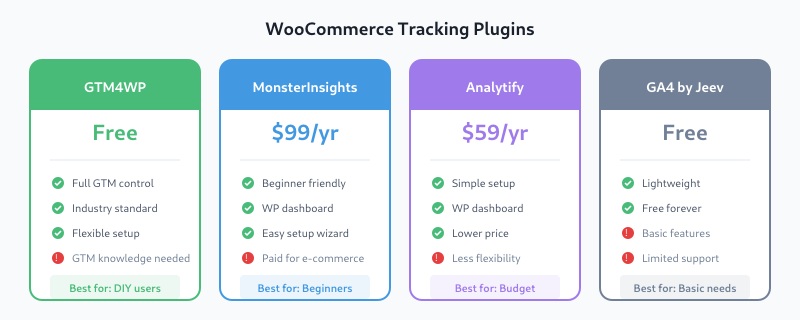
Plugin Comparison
| Plugin | Price | Pros | Cons |
|---|---|---|---|
| GTM4WP | Free | Full control, industry standard | Requires GTM knowledge |
| MonsterInsights | $99/year | Beginner-friendly, dashboard in WP | Paid for e-commerce features |
| Analytify | $59/year | Simple setup, WP dashboard | Less flexibility |
| GA4 by Jeev | Free | Lightweight, free | Basic features only |
My Recommendation
For beginners: Start with GTM4WP (free). It’s the industry standard and gives you room to grow. Yes, you’ll need to set up Google Tag Manager, but there are plenty of tutorials for that.
For those who want simplicity: MonsterInsights is genuinely easier, but you’ll pay $99/year for e-commerce tracking. Whether that’s worth it depends on your budget and time.
The best tool is the one you’ll actually use consistently.
— Avinash Kaushik, Digital Marketing Evangelist at Google
Option 3: Wix
Wix has improved its analytics integration significantly. Here’s how to set it up (see also Wix analytics support):
- Go to Settings → Marketing & SEO → Marketing Integrations
- Find Google Analytics and click Connect
- Enter your GA4 Measurement ID
- Enable e-commerce tracking in the settings
Wix will automatically track standard e-commerce events for Wix Stores. If you’re using a third-party e-commerce solution on Wix, you may need custom implementation.
Option 4: Squarespace
Squarespace offers basic e-commerce tracking, but with some limitations.
What Works Automatically
- Page views
- Purchase events (with revenue data)
What Doesn’t Work
- Add to cart events
- Product view events
- Checkout steps
For full e-commerce tracking on Squarespace, you’ll need to add custom code or use a third-party service. This is one case where a developer might be worth the investment.
When You Actually Need a Developer
Knowing what you don’t know is more useful than being brilliant.
— Charlie Munger, investor and businessman
Be honest with yourself. You probably need a developer if:
- You have a custom-built website (not using a major platform)
- You need custom events beyond standard e-commerce
- You’re using a headless commerce setup
- You need server-side tracking for accuracy
- Your checkout is on a different domain
There’s no shame in hiring help. A developer can set up tracking in a few hours that would take you days to figure out (and might still be wrong).
Cost Comparison: DIY vs Developer
| Approach | Cost | Time | Accuracy |
|---|---|---|---|
| Built-in (Shopify) | $0 | 10 minutes | Good |
| Free plugin (GTM4WP) | $0 | 1-2 hours | Good |
| Paid plugin | $59-99/year | 30 minutes | Good |
| Freelance developer | $200-500 | Their time, not yours | Excellent |
| Agency setup | $1,000-3,000 | Their time, not yours | Excellent + support |
How to Verify Your Tracking Works
After setup, always verify that data is flowing correctly. Follow this checklist:
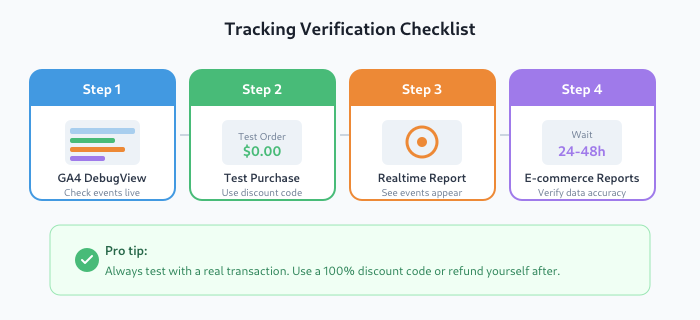
- Use GA4 DebugView — Go to Admin → DebugView and browse your site
- Make a test purchase — Use a 100% discount code or refund yourself
- Check Real-time reports — You should see events appearing within seconds
- Wait 24-48 hours — Then check your e-commerce reports for data
Common Mistakes to Avoid
- Double-tracking — Don’t install multiple tracking solutions. Pick one.
- Forgetting to test — Always verify with a real transaction
- Ignoring currency — Make sure currency is set correctly in GA4
- Not filtering internal traffic — Exclude your own visits from reports
Bottom Line
E-commerce tracking without a developer is absolutely possible — if you’re on the right platform. Shopify and WooCommerce users have it easiest. Squarespace and custom sites are more challenging.
Without data, you’re just another person with an opinion.
— W. Edwards Deming, statistician and quality management pioneer
Don’t waste weeks trying to figure out something that a professional could set up in hours. Your time has value too. Sometimes the smartest DIY decision is knowing when to hire help.
Questions about your specific setup? Feel free to reach out.

About the Author
Tom Bradley
Marketing Analyst with 8+ years of experience in web analytics, attribution modeling, and data-driven marketing. Passionate about making complex tracking concepts accessible to everyone. Founder of Viewing.org.

About the Author
Tom Bradley
Marketing analyst with 8+ years in web analytics. I’ve completed 150+ GA4 implementations and helped 50+ brands turn data into growth strategies. Every guide on Viewing comes from real projects and real problems I’ve solved.