If your website uses Google Analytics and serves visitors in the EU, you need cookie consent. It’s not optional — GDPR and the ePrivacy Directive require explicit consent before any analytics cookies fire. Get this wrong and you’re looking at fines up to 4% of annual revenue. Get it right and you keep your data flowing while staying compliant. Here’s exactly how to set it up.
I’ve configured cookie consent for Google Analytics on dozens of sites over the past few years. The process has changed significantly since Google introduced Consent Mode v2 in late 2023 — what used to be a simple banner is now a two-way communication layer between your consent tool and your tags. This guide covers the current best practice, step by step.
For the signals themselves — what ad_user_data and ad_personalization control, and how basic and advanced mode differ — see the four consent mode signals and how to set them.
Why Cookie Consent Matters for Analytics
Let’s start with the legal reality. Three regulations drive the need for cookie consent:
- GDPR (General Data Protection Regulation) — requires a lawful basis for processing personal data. Analytics cookies that track user behavior fall under this. Consent must be freely given, specific, informed, and unambiguous.
- ePrivacy Directive (“Cookie Law”) — specifically addresses storing information on a user’s device. Any non-essential cookie requires prior consent. Google Analytics cookies (
_ga,_ga_*) are not essential. - National implementations — countries like France (CNIL), Germany (TTDSG), and Italy (Garante) enforce these rules with their own guidelines, often stricter than the baseline.
The penalties are real. In 2022, the Austrian DPA ruled that using Google Analytics without proper consent violated GDPR — a decision that triggered similar rulings across Europe. France’s CNIL fined Criteo €40 million for consent violations. Even smaller companies have faced fines in the €10,000–€100,000 range.
Beyond fines, there’s a practical risk: if a regulator orders you to delete data collected without proper consent, you lose all that historical analytics data permanently.

How Cookie Consent Affects Your GA4 Data
When a user declines analytics cookies, GA4 doesn’t receive any data from that visit. No page views, no events, no conversions. That visitor effectively becomes invisible.
The impact depends on your audience. Sites with mostly EU traffic typically see 30–70% of visitors decline analytics cookies. That means your GA4 reports could be missing a third to two-thirds of actual traffic.
Here’s what specifically breaks:
- Traffic volume — page views and sessions drop significantly
- User counts — GA4 can’t set the
_gacookie, so it can’t identify returning users - Conversion tracking — if a user declines cookies then later converts, the conversion isn’t attributed to earlier touchpoints
- Audience segments — behavioral segments based on page views or events become incomplete
- Attribution — multi-touch attribution models rely on consistent user identification across sessions
This is why Google created Consent Mode — to recover some of that lost data through modeling. But first, you need the consent infrastructure in place.
Google Consent Mode v2 Explained
Google Consent Mode is a framework that lets your Google tags adjust their behavior based on a visitor’s consent choices. Instead of an all-or-nothing approach (fire tag or don’t fire tag), Consent Mode sends cookieless pings that Google uses for behavioral modeling.
Since March 2024, Google requires Consent Mode v2 for any site using Google Ads or GA4 that serves EU users. Without it, you lose access to remarketing audiences and behavioral modeling in GA4.
Consent Mode v2 uses two key consent signals:
analytics_storage— controls whether GA4 can set analytics cookies (_ga,_ga_*)ad_storage— controls whether advertising cookies (Google Ads, Floodlight) can be set
There are two implementation modes:

| Mode | What Happens When User Denies Consent | Modeling Available? |
|---|---|---|
| Basic | Google tags don’t fire at all — zero data collected | No |
| Advanced | Tags fire but send cookieless pings — no cookies set, limited data sent | Yes |
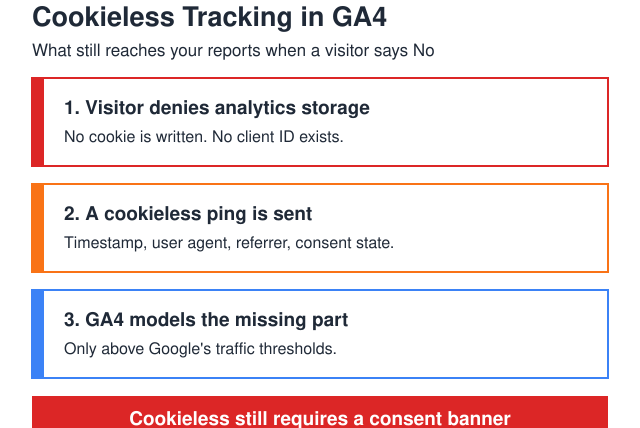
Advanced mode is what you want. When a user denies consent, GA4 still sends anonymous pings that include the page URL, user agent, and timestamp — but no cookies are set and no user identifiers are stored. Google then uses this signal, combined with data from users who did consent, to model the behavior of non-consenting users.
Think of Advanced Consent Mode as a compromise: you respect the user’s choice not to be tracked by cookies, but you still collect enough anonymous signal for Google to estimate what your full traffic picture looks like.
Step 1 — Choose a Consent Management Platform
A Consent Management Platform (CMP) handles the cookie banner, stores user preferences, and communicates consent choices to your tags. You need one that integrates with Google Consent Mode v2.
Here’s how the major CMPs compare:
| CMP | Free Tier | GTM Integration | Consent Mode v2 | Best For |
|---|---|---|---|---|
| Cookiebot | Up to 50 pages | Official template | Yes | Small-to-medium sites, easy setup |
| CookieYes | Up to 100 pages | Official template | Yes | Budget-friendly, WordPress plugin available |
| OneTrust | Limited free | Custom template | Yes | Enterprise, multi-domain, complex compliance |
| Usercentrics | Trial only | Official template | Yes | EU-headquartered, strong GDPR focus |
For most sites, I recommend Cookiebot or CookieYes. Both have official Google Tag Manager templates, reliable Consent Mode v2 support, and free tiers that cover small sites. If you’re running a large enterprise site with multiple domains, OneTrust is the safer bet despite the cost.
Whichever CMP you choose, make sure it’s on Google’s CMP partner list. This ensures compatibility with Consent Mode v2 and Google’s certification requirements.
Step 2 — Install the CMP on Your Site
There are two ways to install a CMP: through Google Tag Manager (recommended) or via direct script installation. I’ll cover both.
Method 1: GTM Template (Recommended)
Most major CMPs offer Community Template Gallery tags in GTM. This is the cleanest method because your consent configuration lives alongside your other tags.
- Open your GTM container
- Go to Templates → Search Gallery
- Search for your CMP (e.g., “Cookiebot CMP”)
- Click Add to workspace
- Create a new tag using the template
- Configure your CMP ID (from your CMP dashboard)
- Set the trigger to Consent Initialization — All Pages
The Consent Initialization trigger is critical. It fires before any other trigger in GTM, ensuring the default consent state is set before any tags attempt to load. If you use “All Pages” instead, there’s a race condition where tags might fire before consent is established.
Method 2: Direct Script Installation
If you don’t use GTM, add the CMP script directly to your site’s <head> section. It must load before the Google Analytics tag.
For WordPress sites, use the Insert Headers and Footers plugin or your theme’s custom code section. Place the CMP script first, then the gtag.js script below it.
Regardless of installation method, create an account on your chosen CMP, add your domain, and run a cookie scan. The CMP automatically categorizes cookies it finds — review the categorization to make sure GA4 cookies are listed under “Analytics” or “Statistics.”
Step 3 — Configure Google Consent Mode in GTM
With your CMP installed, you need to tell GTM how to handle consent. This involves setting default consent states and configuring your GA4 tag to respect them.

Set Default Consent State
Most CMP templates handle this automatically. But verify the default state is set to denied for EU visitors:
analytics_storage: deniedad_storage: deniedad_user_data: deniedad_personalization: denied
For visitors outside the EU, you can set the default to “granted” if local laws allow it. Most CMPs support region-specific defaults.
Configure Your GA4 Tag
In GTM, open your GA4 Configuration tag (or Google Tag) and check the Consent Settings:
- Click on your GA4 tag
- Scroll to Consent Settings (or find it under Advanced Settings)
- Set Built-in Consent Checks — for GA4, the required consent is
analytics_storage - For Advanced Consent Mode: leave “No additional consent required” as-is. The tag will fire in all cases but adjust its behavior based on consent state
- For Basic Consent Mode: set “Require additional consent for tag to fire” and add
analytics_storage
If you want behavioral modeling (and you do), use Advanced Consent Mode. This means the GA4 tag fires on every page load but only sets cookies when
analytics_storageis “granted.”
Consent Update Trigger
When a user clicks “Accept” on your cookie banner, the CMP updates the consent state from “denied” to “granted.” GTM detects this change and automatically re-fires tags that now have the required consent. You don’t need to create a separate trigger for this — GTM’s built-in consent system handles it.
If you’re building a tracking plan alongside your consent implementation, my guide on how to create a tracking plan for your website covers how to document which tags require which consent types.
Step 4 — Verify Consent Is Working
Don’t skip verification. A misconfigured consent setup is worse than no setup at all — you might think you’re compliant when you’re not.

Test 1: Check Default Consent State
- Open your site in an incognito window (no cached consent decisions)
- Open Chrome DevTools → Console
- Before interacting with the banner, type:
dataLayer.filter(e => e.event === 'gtm.init_consent') - You should see
analytics_storage: "denied"in the output
Test 2: Verify Grant Behavior
- Click “Accept All” on the cookie banner
- In Console, type:
dataLayer.filter(e => e.event === 'gtm.consent') - Confirm
analytics_storagechanged to"granted" - Check the Application tab → Cookies — you should see
_gaand_ga_*cookies now present
Test 3: Verify Deny Behavior
- Open a new incognito window
- Click “Reject All” or only accept essential cookies
- Check the Application tab → Cookies — no
_gacookies should be present - In the Network tab, filter for “collect” — in Advanced mode, you should still see requests to
google-analytics.com/g/collectbut with the parametergcs=G100(indicating denied consent)
Test 4: GTM Preview Mode
Use GTM’s Preview mode (Tag Assistant) for the most detailed view. Click on the Consent tab to see exactly which consent types are granted or denied at each point in the page lifecycle. This is the most reliable way to debug consent issues — for a deeper look at debugging tools, see my guide on how to debug your analytics tracking.
Step 5 — Enable Behavioral Modeling in GA4
Behavioral modeling is GA4’s way of filling the data gaps caused by users who decline cookies. When enabled, GA4 uses machine learning to estimate the behavior of non-consenting users based on patterns from users who did consent.
Here’s how to enable it:
- In GA4, go to Admin → Data Settings → Data Collection
- Enable Google signals data collection (required for modeling)
- Go to Admin → Data Settings → Data Collection → Consent Mode settings
- Verify that consent mode is detected (GA4 will show “Consent mode is active”)
There’s a catch: behavioral modeling requires minimum traffic thresholds. Google doesn’t publish exact numbers, but the general requirements are:
- At least 1,000 events per day with
analytics_storagedenied (for at least 7 days) - At least 1,000 daily users sending events with consent granted
- Consent Mode must be active for at least 7 days
If your site doesn’t meet these thresholds, you’ll still collect consented data normally — you just won’t get the modeled data for non-consenting users. Once traffic grows, modeling activates automatically.
When modeling is active, you’ll see a small triangle icon next to metrics in GA4 reports. This indicates the data includes modeled estimates. Reports like Acquisition, Engagement, and Conversions all benefit from modeling.
Cookie Consent Best Practices
Getting consent technically correct is only half the battle. How you design and present the consent experience directly impacts your opt-in rates and data quality.
Banner Design
- Make “Accept” and “Reject” equally prominent — GDPR requires that declining must be as easy as accepting. Dark patterns (hiding the reject button, using a muted color) violate this principle and draw regulatory attention.
- Use clear language — “We use cookies for analytics” is better than “We use cookies to enhance your experience.” Specificity builds trust.
- Provide granular control — let users accept analytics cookies while declining advertising cookies. This typically increases analytics opt-in rates by 15–25%.
- Keep the banner brief — one or two sentences plus buttons. Link to a full cookie policy for details.
Maximizing Opt-In Rates (Ethically)
- Explain the value — “Analytics cookies help us improve the content you see” converts better than generic text
- Use a bottom banner rather than a modal — modals feel intrusive and increase reject rates
- Don’t block the page — cookie walls (blocking content until consent) are illegal in most EU countries
- Test different banner positions and wording — even small changes can shift opt-in rates by 10%+
Documentation and Compliance
- Maintain a cookie inventory — list every cookie, its purpose, duration, and category. Your CMP can auto-scan for this.
- Keep consent records — most CMPs store proof of consent (timestamp, IP, choices made). You’ll need this if a regulator asks.
- Review quarterly — new plugins, scripts, or third-party tools can add cookies you didn’t account for. Run a cookie scan every 3 months.
- Update your privacy policy — it must reference your analytics cookies, their purpose, and how users can change their preferences.
FAQ
Not for GDPR specifically, but some US states (California’s CCPA/CPRA, Colorado, Connecticut) have their own privacy laws. If any EU visitors access your site — even unintentionally — GDPR applies. Most compliance experts recommend implementing consent regardless of your target audience.
No. Consent Mode is a technical framework — it communicates consent decisions to Google tags but doesn’t collect consent itself. You still need a CMP (cookie banner) to present choices to users and record their decisions. Consent Mode and a CMP work together.
It depends on your audience and banner design. Sites with mostly EU traffic typically see 30–50% of users decline analytics cookies. With Advanced Consent Mode and behavioral modeling enabled, GA4 can recover a significant portion of that gap through statistical estimation.
Not with standard GA4. Google Analytics requires the _ga cookie for user identification. However, when Consent Mode is in Advanced mode with consent denied, GA4 collects cookieless pings — limited data without setting any cookies. For fully cookieless analytics, you’d need an alternative tool like Plausible or Fathom.
What happens if I implemented Consent Mode v1 — do I need to upgrade?
Yes. Google deprecated Consent Mode v1 in March 2024. Version 2 adds two new parameters (ad_user_data and ad_personalization) required for EU data processing. Without upgrading, you lose remarketing audiences and may not meet Google’s EU user consent policy requirements.
Conclusion
Setting up cookie consent for Google Analytics involves five steps: choosing a CMP, installing it, configuring Consent Mode in GTM, verifying everything works, and enabling behavioral modeling. The process takes 1–2 hours for a standard setup.
The key takeaway: consent isn’t just a legal checkbox. Done right, it builds user trust, keeps your data compliant, and — with Advanced Consent Mode — recovers much of the data you’d otherwise lose. Start with a Google-certified CMP, default all consent types to denied for EU visitors, verify with GTM Preview mode, and monitor your modeling status in GA4.
If you’re just getting started with GA4, make sure your event tracking is properly configured first — consent without tracking in place doesn’t help anyone.

About the Author
Tom Bradley
Marketing analyst with 8+ years in web analytics. I’ve completed 150+ GA4 implementations and helped 50+ brands turn data into growth strategies. Every guide on Viewing comes from real projects and real problems I’ve solved.